
Issue a Gift Card
The Gift Card feature in Loyalty let you provision digital and / or physical Gift Cards to your customers, who can then use it to make purchases in-store and online. The Loyalty platform securely stores gift card balances and transaction history.
From the Member Profile screen, Customer Service Representatives can issue a new Gift Card to a Member.
To issue a Gift Card to a Member:
-
Select Members from the top navigation bar, then select CSR > People from the side navigation menu. The People screen is displayed.
-
On the People screen, search for and select the desired Member (see
-
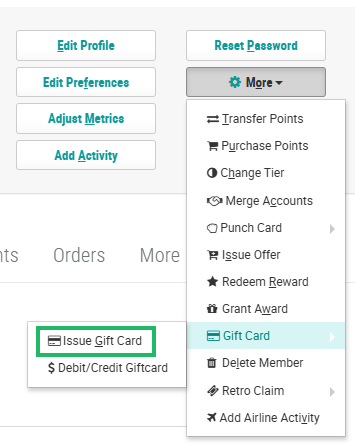
Within the header section of the screen, click More > Gift Card > Issue Gift Card. The Create Gift Card pop-up window is displayed.
-
From the Gift Card Class drop-down menu, select the desired Gift Card Class.
-
Determine the Gift Card number using one of the following available methods:
-
Select a number from the drop-down menu.
-
If Auto-Generate has been enabled for this Gift Card Class, select Generate Automatically from the drop-down menu.
-
In the text field, enter a Gift Card number.
-
-
Depending on the configuration properties defined for this Gift Card Class, you may see a PIN field. The PIN is a alphanumeric string needed to perform certain Gift Card transactions, such as linking a Gift Card to a Member. Optionally enter a value in this field.
-
Depending on the configuration properties defined for this Gift Card Class, you may see a Gift Card Type drop-down menu. From this menu, select the type of card: either Physical or Digital.
-
Optionally, in the Name field, enter an internal name for this Gift Card.
-
Optionally, in the Description field, enter a description of this Gift Card.
-
Click Save.
